How to Install Your Tourlane eSIM ? Android
For any further information or support requests, this page has been designed exclusively for Tourlane customers.
Key Points
- You received a QR code PDF in your travel documents from Tourlane.
- You need a stable internet connection (WiFi or strong 4G/5G) to install the eSIM.
- The eSIM can only be installed on one device — it cannot be moved to another phone afterwards.
- Installation takes 2-5 minutes.
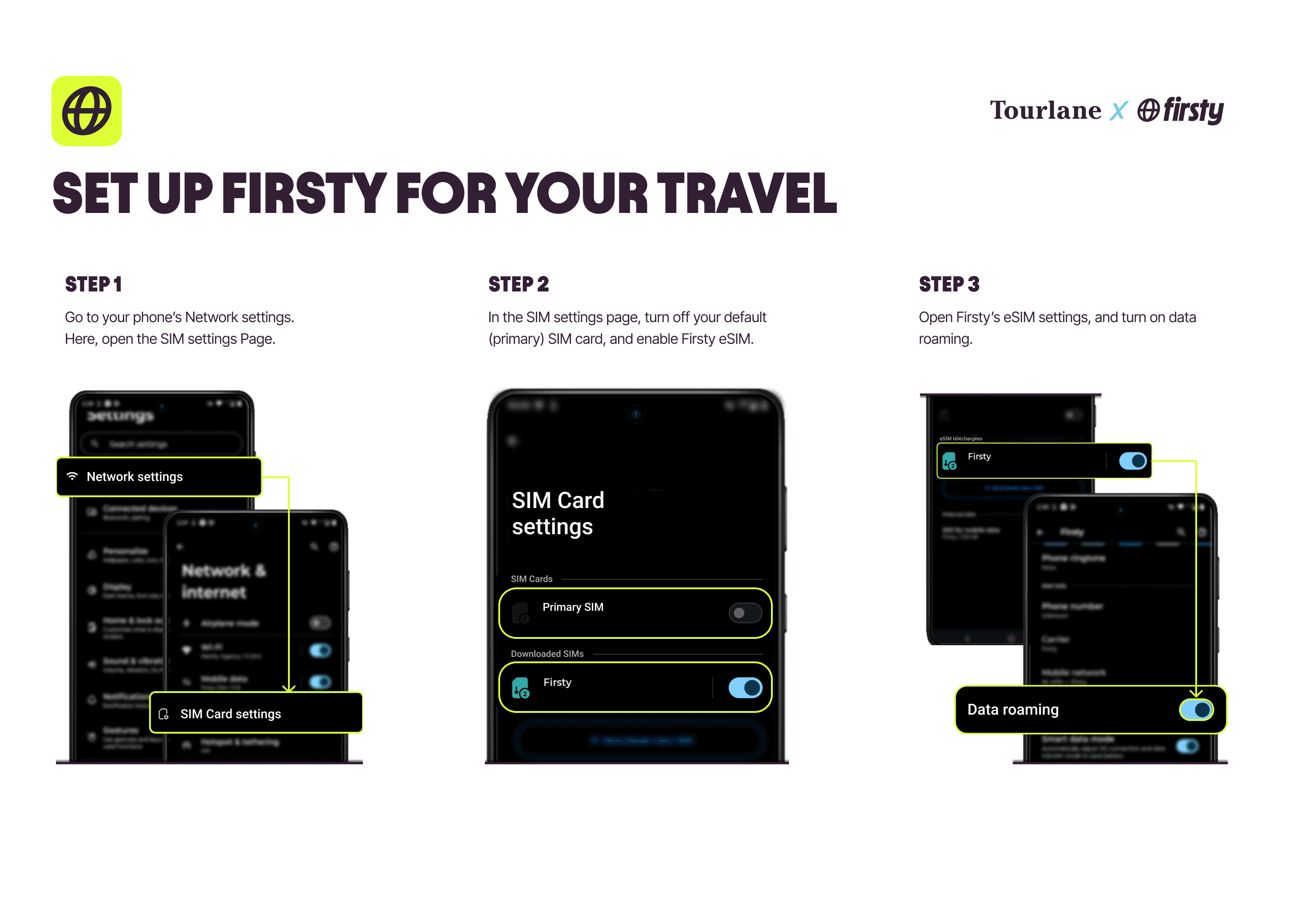
- After installation, you must enable data roaming (see Setting Up Your eSIM for Internet).
Before you begin
Make sure you have:
- Your QR code PDF (from your Tourlane travel documents)
- A stable internet connection (WiFi or strong 4G/5G)
- Your phone is eSIM compatible and carrier unlocked (see Is Your Phone eSIM Compatible?)
- No active VPN on your phone
- You have decided which phone to install on — you cannot move the eSIM to a different phone later
Tip: If the QR code is on your phone screen, you will need a second device (laptop, tablet, or another phone) to display it while you scan with your phone. Alternatively, print the PDF.
Samsung
- Open Settings.
- Tap Connections.
- Tap SIM Manager.
- Tap Add eSIM.
- Select Scan QR Code.
- Point your camera at the QR code.
- Follow the on-screen prompts to complete installation.
Google Pixel
- Open Settings.
- Tap Network & Internet.
- Tap SIMs.
- Tap + (Add).
- Select Download a SIM instead?
- Tap Next and scan the QR code.
Other Android phones
- Open Settings.
- Look for Network & Internet, Connections, or Mobile Network.
- Look for SIM Manager, SIM cards, or Dual SIM & eSIM.
- Tap Add eSIM or +.
- Select Scan QR Code and scan the code from your travel documents.
After installation: Continue to Setting Up Your eSIM for Internet to enable data roaming.
What if the QR code won't scan?
- Make sure the QR code image is clear and not blurry. Try zooming in on the PDF.
- Ensure your camera lens is clean.
- Try holding the phone steady at about 15-20 cm from the code.
- Make sure you have a stable internet connection — the scan will fail without one.
- Disable any VPN before scanning.
If the QR code still won't scan, you can install manually. See Troubleshooting: eSIM Installation Problems for manual installation steps and common error messages.
Important: One device only
Your eSIM can only be installed on one device. Once it has been installed on a phone, it is permanently linked to that device. It cannot be transferred, shared, or reinstalled on a different phone.
If you accidentally install the eSIM on the wrong device, or if you get a new phone, contact Tourlane support with your T-number (booking reference). A replacement may need to be issued.
Related Articles
When Should I Activate My eSIM?
Setting Up Your eSIM for Internet
Troubleshooting: eSIM Installation Problems
Help us improve our service 😊
Was this article helpful?